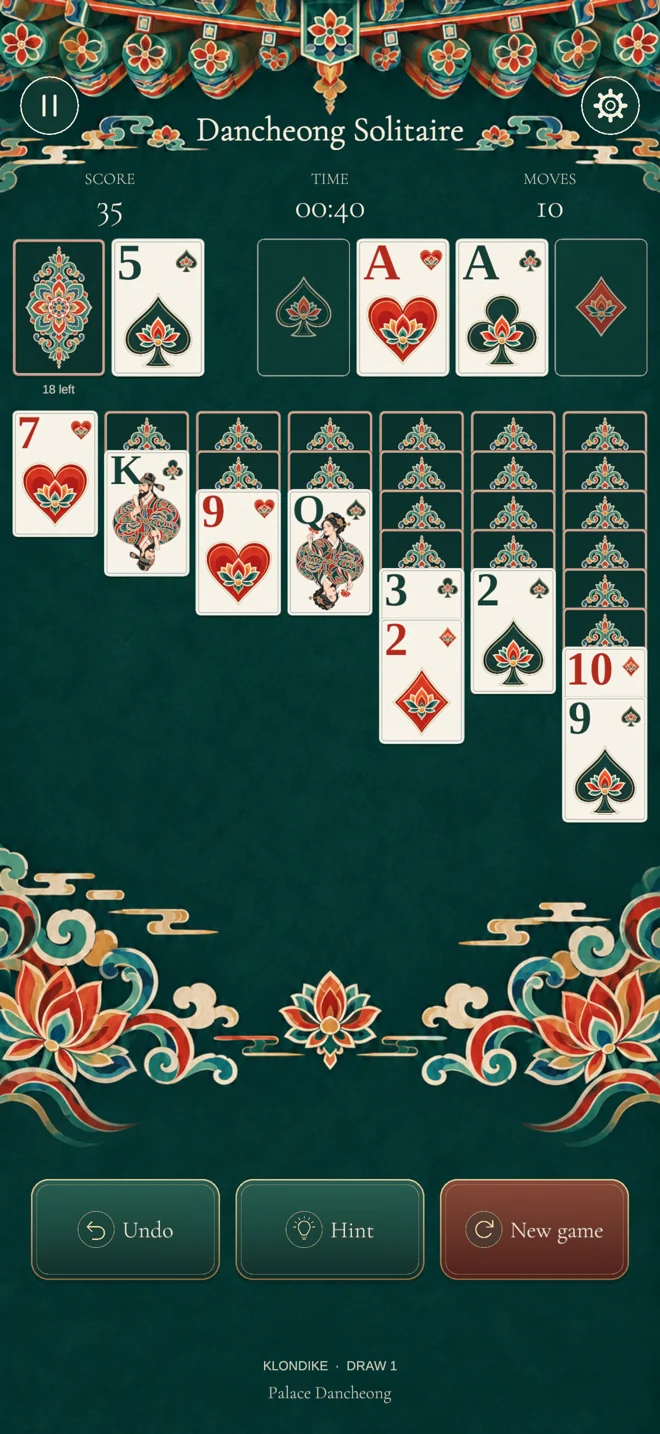
Dancheong Solitaire is a single-player card game using classic Klondike rules. Complete a deal by moving all 52 cards onto the four foundations at the top.
Find your way around the board
The deck, waste pile and four foundations are at the top. Below them, seven columns let you arrange cards and reveal the face-down cards.
Deck: tap to draw the next card or cards.
Waste pile: only its top card can be moved.
Foundations: collect each suit from Ace through King.
Seven columns: arrange cards in descending order, alternating colors.
We are preparing for release on iOS and Android. After release, the game will be available for free on the App Store and Google Play.
02
Where cards can go
Foundations: the same suit, from Ace to King
Use one foundation for each suit: spades, hearts, clubs and diamonds. Start with an Ace, then add 2, 3 and the remaining ranks in order, finishing with a King.
Columns: alternate colors and count down
Alternate the dark jade spades and clubs with the vermilion hearts and diamonds. For example, put a red Queen below a dark King, then a dark Jack below the Queen.
Move an ordered sequence together
Face-up cards in descending order with alternating colors can move as one group. Only a King, or a sequence beginning with a King, can fill an empty column.
Deals are random. As in traditional Klondike, not every deal is guaranteed to be solvable.
03
Draw modes and controls
Draw 1 and Draw 3
Tap the deck to draw one or three cards. In either mode, only the top waste card is playable. When the deck is empty, tap it to recycle the waste pile.
Tap or drag a card
Tap a face-up card to move it to a suggested destination. To choose a destination yourself, drag the card to the position you want.
Change the next deal or restart the same one
Use the pause menu to choose Draw 1 or Draw 3 for your next deal. The choice takes effect when you start a new deal. Restarting the same layout lets you try a different approach.
Finish the remaining cards automatically
When the deck and waste pile are empty and every hidden card is face up, an auto-finish button appears. Tap it to move the remaining cards to the foundations.
04
Undo and hints
Undo up to 200 moves
Undo up to 200 actions without watching an ad. The game timer does not rewind.
Three free hints per deal
Tap Hint to open the hint dialog. A free hint highlights a useful legal move, prioritizing moves that reveal hidden cards. It is not a complete solver and does not guarantee a solution.
After using your free hints
Complete a rewarded ad to receive one more hint. If an ad is unavailable, one hint is provided for free. Tapping the ad button alone does not grant a reward.
When no card can be moved, the game may suggest drawing from the deck. Check whether another card opens a move, or try Undo or restarting the same deal.
05
Saving and resuming
Your current deal saves on your device after actions, at regular intervals and when the app moves to the background. Open the app again to continue the saved deal.
The layout, score, moves, time, undo history and free hints used are saved together. Saves stay on the device where you played and do not automatically sync to another device.
You can play cards without an internet connection. Ads, update checks and some other online features require a connection.
06
Settings and advertising
Sound and language
Adjust sound from the pause menu. At first launch, the game follows your device language. Settings lets you choose from 12 languages, including English and Korean.
Banner and rewarded ads
A banner ad appears at the bottom of the screen. After using your free hints, you may choose to watch a rewarded ad for another hint.
Privacy and advertising preferences
Open Privacy policy in Settings to read the details. In regions requiring consent, Ad & data preferences lets you revisit your privacy choices.
07
Troubleshooting
A card will not stay where I drop it.
In a column, the card must be one rank lower and the opposite color. Foundations use the same suit in order from Ace. Empty columns accept only Kings, and only the top waste card can move.
I changed the draw mode, but my current deal did not change.
The draw setting in the pause menu applies to your next new deal. It does not change the rules of a deal already in progress.
I cannot find another move.
Draw from the deck, or tap an empty deck to recycle it. Try a hint, Undo or restarting the same layout. Deals are random, so not every deal has a solution.
The ad for another hint does not appear.
An ad may be unavailable because of your connection or ad availability. If an ad cannot be shown, one hint is provided for free.
My saved deal is missing on another device.
Progress is stored on the device where you played. It does not automatically sync between devices.
I cannot continue after an update notice.
Check the store for the latest version. If the problem continues, contact support with your device model, operating system and game version.
Still need a little help?
Include your device model, operating system, game version and what happened so we can better understand the issue.